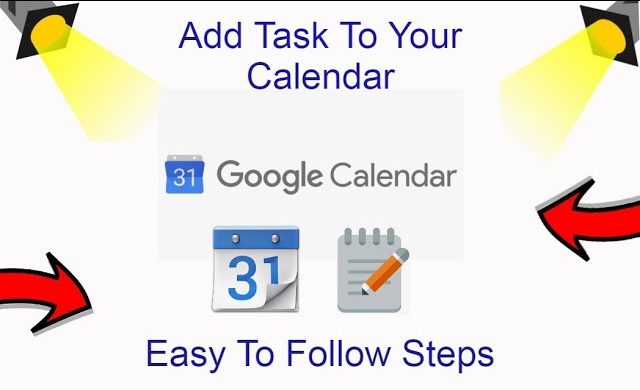
A calendar tells you when something happens, but a task list tells you what needs to get done. Google Calendar brings these two together by allowing you to create, schedule, and manage Google Tasks directly alongside your daily schedule.
Instead of keeping a separate to-do list that you may forget to check, you can place tasks directly on your calendar so they appear alongside meetings, appointments, and personal events. This makes it easier to see how much work fits into your day and reduces the chances of missing important deadlines.
Google has continued improving the integration between Google Calendar and Google Tasks. Today, you can create tasks from Calendar, Gmail, Google Chat, and other Google Workspace apps, assign dates, schedule dedicated work time, create recurring tasks, organize them into lists, and receive reminders when the scheduled time arrives. Scheduled tasks automatically sync across devices as long as you’re signed in with the same Google Account. Even better, recent updates allow you to reserve actual blocks of time for tasks instead of treating them as simple reminders, making Google Calendar a much more practical productivity tool.
Whether you’re planning a work project, managing university assignments, tracking household responsibilities, or simply trying to stay organized, learning how to add tasks to Google Calendar helps you turn a busy schedule into an actionable plan.
In this guide, you’ll learn:
- The difference between Google Calendar events and Google Tasks.
- Why scheduling tasks improves productivity.
- How to add tasks to Google Calendar in six simple steps.
- Best practices for organizing your task list.
- Common mistakes to avoid.
- When it’s time to move beyond Google Tasks to a more powerful work management solution.
By the end, you’ll know how to build a task system that works across your desktop, phone, Gmail, and the rest of Google’s productivity ecosystem.
Task vs. Event in Google Calendar: What’s the Difference?
Although tasks and events appear in the same calendar, they serve different purposes. Understanding when to use each one helps you keep your schedule organized without creating unnecessary clutter.
| Google Task | Google Calendar Event |
|---|---|
| Represents work that needs to be completed. | Represents something that happens at a specific date and time. |
| Can be marked as completed. | Cannot be “completed”; it simply ends after its scheduled time. |
| Supports subtasks, recurring schedules, and task lists. | Supports attendees, locations, video meetings, attachments, and detailed scheduling. |
| Usually assigned to one person. | Often involves multiple people or shared schedules. |
| Best for to-do items and personal work. | Best for meetings, appointments, classes, travel, and events. |
Use Google Tasks when you need to complete work
Google Tasks is designed for actionable items that require your attention. Each task can include:
- A title
- Notes or descriptions
- A scheduled date and optional time
- A separate deadline
- Recurring schedules
- Subtasks
- Task lists for organization
For example:
- Finish quarterly sales report
- Submit university assignment
- Call a client
- Review project proposal
- Renew vehicle insurance
When a task has a scheduled date, it appears on your Google Calendar. Once finished, simply mark it as complete instead of deleting it.
Use Events when time is already committed
Events represent appointments that occur at a defined time and often involve other people.
Examples include:
- Team meetings
- Doctor appointments
- Job interviews
- Flight departures
- Client presentations
- Birthday celebrations
Events offer features that tasks don’t, including:
- Guest invitations
- Google Meet links
- Locations with Maps integration
- File attachments
- Calendar sharing
- Multiple reminder options
- Availability settings such as Free or Busy
These features make events ideal for commitments that happen at a fixed time rather than work you need to complete.
Can a task become an event?
Sometimes.
Suppose your task is “Prepare tomorrow’s presentation.” That’s a task because it’s work you need to complete.
However, “Present to the marketing team at 2:00 PM” is an event because it’s a scheduled meeting with a defined start and end time.
Many people use both together:
- Create an event for the presentation itself.
- Create one or more tasks beforehand for research, slide design, and rehearsal.
This combination helps ensure that preparation receives dedicated time instead of being squeezed in between meetings.
Why Add Tasks to Google Calendar?
Many people keep long to-do lists that never seem to get shorter. The problem usually isn’t forgetting what needs to be done—it’s failing to decide when the work will actually happen.
Adding tasks to Google Calendar solves this by giving every important task a place in your schedule.
See your workload at a glance
Instead of switching between a calendar and a separate checklist, you can view appointments and tasks together.
This provides a more realistic picture of your day and prevents accidentally scheduling meetings during planned focus time.
Turn intentions into scheduled work
Writing “Write blog post” on a to-do list doesn’t guarantee it’ll happen.
Scheduling that task from 10:00 AM to 11:30 AM creates a dedicated work session, making it much more likely that you’ll complete it.
Time-blocking is one of the simplest ways to reduce procrastination because every important task has a reserved place on your calendar.
Stay organized across Google’s apps
Google Tasks works throughout the Google Workspace ecosystem.
You can:
- Create a task directly from Gmail after receiving an important email.
- Add follow-up work from Google Chat conversations.
- Manage tasks from Calendar.
- View the same tasks on Android, iPhone, tablets, and desktop.
Everything stays synchronized automatically under your Google account.
Prioritize what matters most
Not every task deserves immediate attention.
Using task lists, recurring schedules, subtasks, and scheduled work sessions helps separate urgent work from items that can wait. Instead of staring at an overwhelming list of dozens of tasks, you only focus on what’s planned for today.
Reduce missed deadlines
Tasks with dates appear on your calendar, and tasks with scheduled times can trigger notifications. Recurring tasks automatically generate future instances, making them useful for weekly reports, monthly reviews, bill payments, fitness routines, or regular maintenance.
Build a sustainable productivity habit
The biggest benefit isn’t simply adding tasks—it’s building a routine.
When you consistently schedule work instead of relying on memory, you develop a system that reduces mental overload. Your calendar becomes more than a schedule for meetings; it becomes a practical plan for completing meaningful work every day.
Whether you’re a freelancer balancing client projects, a student managing assignments, or a business owner coordinating multiple responsibilities, integrating Google Tasks with Google Calendar helps transform scattered to-do lists into an organized, actionable workflow.
How To Add Tasks to Google Calendar in 6 Steps
Google Tasks is built directly into Google Calendar, making it easy to schedule your work alongside meetings and appointments. Unlike traditional to-do lists, scheduled tasks appear on your calendar, giving you a realistic view of your workload and helping you reserve time to complete important work.
The following six steps walk you through the current Google Calendar experience across desktop and mobile devices.
Step 1: Turn on the Tasks Layer
Before you can see your tasks on Google Calendar, make sure the Tasks layer is enabled.
On the desktop version of Google Calendar:
- Open Google Calendar and sign in with your Google account.
- In the left sidebar, locate My calendars.
- Scroll until you find Tasks.
- Check the box beside Tasks if it isn’t already enabled.
If the Tasks calendar is hidden, any tasks you create will still exist but won’t appear on your calendar view. Turning on the layer allows scheduled tasks to display alongside your events.
On the mobile app, Google Calendar automatically displays scheduled tasks when you’re signed into the same Google account. If you don’t see them, ensure you’re using the latest version of both Google Calendar and Google Tasks.
Once enabled, your calendar becomes more than an appointment planner—it also acts as a visual task schedule.
Pro Tip: Use the Week or Schedule view to see how your tasks fit around meetings. This makes it easier to avoid overloading busy days.
Step 2: Create the Task and Give It a Time
After enabling the Tasks layer, you can create your first task.
There are several ways to do this:
Method 1: From Google Calendar
- Click any date or time slot.
- Select Task instead of Event.
- Enter a task name.
- Add notes if necessary.
- Choose a date.
- Assign a specific time if you want the task to appear in your schedule.
- Save.
Method 2: From the Google Tasks side panel
On desktop, you’ll find the Google Tasks icon in the right sidebar of many Google Workspace apps.
Open Tasks and click Add a task, then enter:
- Task title
- Date
- Time
- Notes
- Optional subtasks
Adding a time is especially useful because it places the task directly on your calendar timeline rather than leaving it as an all-day item.
For example:
- 9:00–9:30 AM — Review project proposal
- 2:00 PM — Call supplier
- 4:30 PM — Submit monthly report
Scheduling work instead of simply listing it increases the likelihood that you’ll actually complete it.
Step 3: Block Real Working Time
One of the biggest productivity mistakes is assuming a task will somehow get done whenever you have “free time.”
Instead, reserve dedicated work blocks.
Suppose you need to write a proposal expected to take two hours.
Rather than creating a task that simply says:
Finish proposal
Schedule it like this:
- 9:00–11:00 AM
- Proposal writing
This prevents meetings and other commitments from consuming the time you intended for focused work.
When blocking time, estimate realistically.
Instead of squeezing five major tasks into one afternoon, spread them throughout the week according to priority and effort.
A practical approach is:
- Morning: Deep-focus work
- Midday: Meetings
- Afternoon: Email, follow-ups, and administrative tasks
Time blocking also helps you understand your true capacity.
If your calendar already contains six hours of meetings, scheduling another six hours of tasks isn’t realistic. Your calendar becomes an honest picture of your available time.
For recurring responsibilities like weekly reports, expense reviews, or content planning, create recurring tasks so you don’t have to recreate them every week.
Step 4: Capture Tasks on Your Phone
Ideas rarely arrive while you’re sitting at your desk.
They appear while commuting, shopping, attending meetings, or talking with colleagues.
The Google Tasks mobile app makes it easy to capture those ideas before you forget them.
Using the app, you can:
- Create new tasks in seconds.
- Add notes.
- Set dates and times.
- Create recurring tasks.
- Organize work into lists.
- Mark tasks complete.
- Edit existing tasks.
Because Google Tasks syncs with your Google account, changes appear automatically on your desktop and in Google Calendar.
This creates a seamless workflow.
For example:
You’re walking to lunch when a client asks for an updated proposal.
Instead of relying on memory, open Google Tasks, create:
Send revised proposal
Assign tomorrow at 10:00 AM.
When you return to your desk, it’s already waiting on your calendar.
This habit dramatically reduces forgotten work.
Best Practice: Capture every task immediately, even if you plan to organize it later. Emptying your mind into a trusted system reduces mental clutter.
Step 5: Capture Tasks from Gmail and Chat
One of the strongest advantages of Google Tasks is its integration with Google Workspace.
Instead of copying information manually, you can turn conversations into actionable tasks.
From Gmail
Many emails require follow-up rather than immediate replies.
Examples include:
- Review contract
- Send invoice
- Reply after client approval
- Prepare presentation
Rather than leaving these emails unread, create a task directly from Gmail.
The task includes a link back to the original email, making it easy to reopen the conversation later.
This eliminates searching through your inbox when it’s time to complete the work.
From Google Chat
The same concept applies to Chat conversations.
When teammates assign work during discussions, you can convert those action items into tasks without leaving the conversation.
This is particularly useful for teams using Google Workspace for daily collaboration.
Instead of remembering:
“Can you finish the dashboard before Friday?”
you simply create a scheduled task immediately.
The result is fewer forgotten commitments and less dependence on memory.
Step 6: Organize with Lists, Subtasks, and Repeats
Creating tasks is only the beginning.
As your workload grows, organization becomes essential.
Google Tasks offers three simple but effective organizational tools.
Use Lists
Lists separate different areas of your life.
Examples include:
- Work
- Personal
- School
- Shopping
- Home
- Side Business
Instead of one overwhelming list with hundreds of items, each category remains focused and manageable.
For example:
Work
- Prepare quarterly report
- Client meeting notes
- Update CRM
Personal
- Book dentist appointment
- Grocery shopping
- Pay electricity bill
Break Large Tasks into Subtasks
Large projects become less intimidating when divided into smaller actions.
Instead of:
Launch new website
Create subtasks such as:
- Finalize homepage copy
- Review product pages
- Upload images
- Test mobile responsiveness
- Publish website
This makes progress visible and prevents complex work from feeling overwhelming.
However, avoid creating dozens of nested subtasks. If a project requires extensive planning, a dedicated project management platform is usually a better solution.
Create Recurring Tasks
Many responsibilities repeat regularly.
Examples include:
- Weekly reports
- Team check-ins
- Budget reviews
- Content publishing
- Monthly invoices
Recurring tasks eliminate repetitive setup while ensuring important responsibilities never disappear from your schedule.
Review recurring tasks occasionally to make sure they’re still relevant and scheduled at practical times.
3 Ways to Run a To-Do List Alongside Google Calendar
Google Calendar works well with several types of task management systems. The right choice depends on how simple—or sophisticated—your workflow needs to be.
1. Native Google Tasks
For many people, the built-in Google Tasks app is all they need.
It offers a lightweight, distraction-free experience that integrates naturally with Google Calendar, Gmail, and other Google Workspace apps.
It’s an excellent option if you mainly want to:
- Track daily to-do lists.
- Schedule personal reminders.
- Organize work into basic lists.
- Create recurring tasks.
- View scheduled work on your calendar.
Best for
- Students
- Freelancers
- Individual professionals
- Personal productivity
- Anyone already using Google Workspace
Advantages
- Free with every Google account.
- Built into Google Calendar.
- Automatic synchronization across devices.
- Fast and easy to learn.
- Minimal setup.
Limitations
As your work becomes more complex, you may notice some constraints:
- No advanced project planning.
- Limited collaboration features.
- No workload management.
- Basic reporting.
- Minimal automation.
- Limited customization.
If your work involves multiple projects, cross-functional teams, or client management, you’ll likely outgrow Google Tasks.
2. Third-Party To-Do Apps That Sync with Google Calendar
Some users prefer dedicated task managers that offer more features while still displaying scheduled work in Google Calendar.
Popular options include apps like Todoist and TickTick.
These applications generally provide:
- Priority levels.
- Smart filters.
- Labels and tags.
- Natural language scheduling.
- Productivity statistics.
- Cross-platform synchronization.
- Advanced recurring task options.
Many also allow scheduled tasks to appear inside Google Calendar through calendar subscriptions or built-in integrations.
Best for
- Power users.
- Professionals with large personal task lists.
- Users who prefer advanced task management without moving to a full project management platform.
The trade-off is increased complexity. While these apps offer more flexibility than Google Tasks, they still focus primarily on individual task management rather than full-scale team collaboration.
3. Dedicated Project Management Tools (Corexta, Asana)
Once you’re coordinating multiple people, projects, deadlines, and business processes, a simple task list is rarely enough.
Dedicated project management software combines task management with planning, collaboration, communication, and reporting in one centralized workspace.
Instead of only seeing today’s tasks, you can manage the entire lifecycle of a project—from planning and assignment to execution and completion.
Platforms such as Corexta and Asana extend beyond basic task management by offering capabilities such as:
- Project workspaces
- Team collaboration
- Task assignment
- Due dates and priorities
- File sharing
- Project timelines
- Kanban boards
- Calendar views
- Progress tracking
- Workflow automation
- Team dashboards
- Permission management
- Activity history
Many of these platforms also integrate with Google Calendar, allowing assigned tasks and deadlines to remain visible alongside meetings and appointments.
Best for
- Growing businesses
- Marketing teams
- Software development teams
- Agencies
- Remote teams
- Operations teams
- Organizations managing multiple projects simultaneously
If your work involves dependencies, approvals, client communication, resource planning, or recurring business processes, a project management platform provides significantly more visibility than Google Tasks alone.
The advantage is that your calendar becomes just one view of your work rather than the primary place where work is managed. Teams can plan projects, collaborate in real time, monitor progress, and still keep important deadlines synchronized with Google Calendar for day-to-day scheduling.
What Must a Good Task Setup Include?
Adding tasks to Google Calendar is only the first step. To stay productive over the long term, you need a task setup that is easy to maintain, organized, and realistic. A poorly structured system quickly becomes cluttered with overdue tasks, duplicate reminders, and incomplete projects, making it less helpful over time.
A good task setup should help you answer three questions every day:
- What needs to be done?
- When will I work on it?
- What should I focus on first?
Here are the essential elements every effective Google Calendar task system should include.
Organize Tasks into Separate Lists
One long list containing work projects, personal errands, shopping items, and study assignments quickly becomes overwhelming.
Instead, create dedicated lists for different areas of your life.
For example:
Work
- Prepare client proposal
- Review invoices
- Weekly team meeting notes
Personal
- Grocery shopping
- Schedule dentist appointment
- Renew driver’s license
Education
- Finish research paper
- Read Chapter 8
- Prepare for exam
Keeping similar tasks together reduces clutter and makes it easier to focus on the right responsibilities at the right time.
Schedule Time Instead of Only Setting Deadlines
Many people add due dates without deciding when they’ll actually complete the work.
For example:
❌ Submit tax documents — Due Friday
A better approach is:
- Wednesday, 10:00–11:00 AM — Gather financial documents
- Thursday, 2:00–3:30 PM — Complete tax forms
- Friday — Final review and submission
Breaking work into scheduled sessions dramatically increases the likelihood of finishing before the deadline.
Your calendar should reflect not only when work is due but also when you’ll make progress on it.
Break Large Projects into Manageable Steps
Large tasks often lead to procrastination because they’re too vague.
Instead of writing:
Launch new website
Break it into actionable tasks:
- Finalize page layout
- Write homepage copy
- Upload images
- Test mobile responsiveness
- Publish website
Smaller tasks create momentum and make progress easier to measure.
Use Recurring Tasks for Routine Responsibilities
Many responsibilities repeat every week or month.
Examples include:
- Weekly reports
- Team meetings
- Paying utility bills
- Content publishing
- Monthly budget reviews
- Inventory checks
Rather than creating these tasks repeatedly, use recurring schedules.
This saves time and ensures recurring responsibilities don’t get forgotten.
Review recurring tasks every few months to remove anything that is no longer relevant.
Include Helpful Notes
Google Tasks allows you to add descriptions beneath each task.
Instead of relying on memory, include useful information such as:
- Phone numbers
- Website links
- Meeting agendas
- Reference numbers
- Project requirements
- Shopping lists
For example:
Task
Renew business license
Notes
- Renewal ID
- Required documents
- Office hours
- Payment confirmation number
Adding context reduces the need to search for information later.
Prioritize Your Daily Workload
Avoid scheduling more work than you can realistically complete.
A productive task system focuses on today’s priorities instead of displaying dozens of unfinished items.
A simple approach is:
- High priority: Complete today
- Medium priority: Schedule this week
- Low priority: Complete when time allows
If your calendar is already filled with meetings, don’t schedule six additional hours of focused work.
A realistic plan is always more effective than an ambitious one.
Review Your Task List Regularly
Even the best task system requires maintenance.
Set aside a few minutes each day to:
- Complete finished tasks.
- Reschedule unfinished work.
- Remove outdated tasks.
- Add new priorities.
- Check upcoming deadlines.
A weekly review is equally important.
Use it to plan the following week, organize new projects, and make sure your calendar reflects your actual workload.
A task system should evolve with your responsibilities—not become a collection of forgotten reminders.
How to Keep Your Task System Working
Creating a task list is easy. Keeping it useful every day is the real challenge.
Many productivity systems fail because users stop maintaining them. Tasks pile up, deadlines pass, and the calendar becomes too crowded to trust.
Fortunately, avoiding this only requires a few consistent habits.
Capture Every Task Immediately
Don’t rely on memory.
Whenever something requires action—whether it’s mentioned during a meeting, arrives in an email, or comes to mind unexpectedly—record it immediately.
This habit creates a trusted system where nothing important gets lost.
Schedule Daily Planning Time
Spend five to ten minutes each morning reviewing your calendar.
Ask yourself:
- What must be completed today?
- Which tasks can wait?
- Do I have enough time for everything I’ve scheduled?
Making small adjustments each morning keeps your schedule realistic.
Review Every Evening
Before finishing work, quickly review your completed tasks.
Move unfinished work to another day if necessary instead of letting overdue items accumulate.
This simple habit keeps your calendar accurate and prevents overwhelming backlogs.
Conduct a Weekly Reset
Choose one day each week—often Friday afternoon or Sunday evening—to review your entire task system.
During this review:
- Complete unfinished items.
- Remove outdated tasks.
- Schedule upcoming deadlines.
- Organize new projects.
- Check recurring tasks.
- Plan next week’s priorities.
This weekly reset prevents your system from becoming disorganized.
Don’t Use Tasks for Everything
Google Tasks works best for actionable work.
Avoid creating tasks for information you simply want to remember.
Instead:
- Store notes in a note-taking app.
- Save documents in cloud storage.
- Use calendar events for meetings.
- Use tasks only for actions requiring completion.
This keeps your task list focused.
Keep Tasks Clear and Actionable
Good tasks start with verbs.
Instead of:
- Marketing
- Website
- Budget
Write:
- Review marketing campaign
- Update homepage banner
- Prepare monthly budget
Clear wording reduces decision fatigue because you immediately know what needs to be done.
Archive Completed Work Mentally
Checking off completed tasks provides a sense of progress.
Avoid leaving finished work on your active list.
Completing tasks regularly keeps your list manageable and reinforces productive habits.
3 Google Calendar Task Examples for Different People
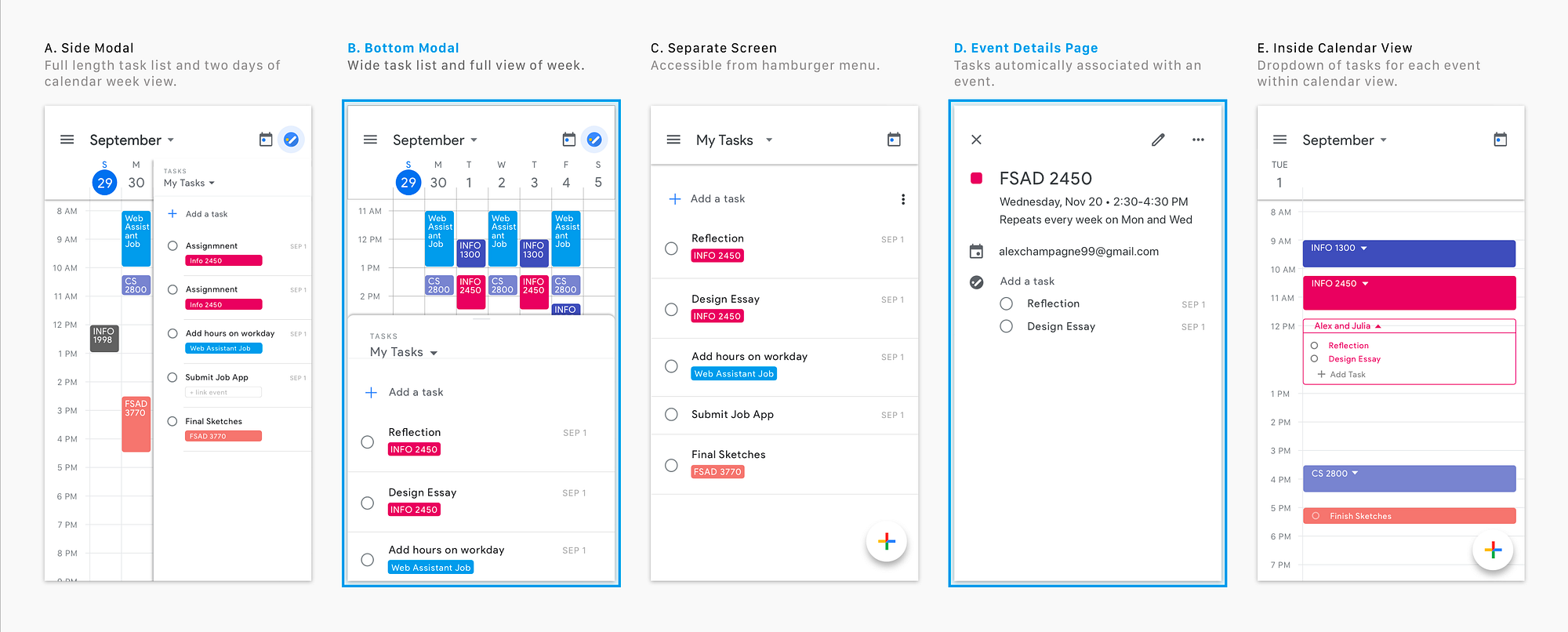
Google Tasks can be adapted to many different lifestyles.
Here are three practical examples.
The Freelancer’s Day Plan
Freelancers often balance multiple clients, deadlines, meetings, and administrative work.
A typical day might look like this:
8:30 AM
Review client emails
9:00–11:00 AM
Write blog article
11:15 AM
Send project proposal
1:00 PM
Client video meeting
2:30 PM
Invoice completed projects
4:00 PM
Update project tracker
5:00 PM
Plan tomorrow’s priorities
Notice how meetings appear as calendar events while actual work is scheduled as tasks.
This creates a realistic workload instead of relying on an endless to-do list.
The Student’s Semester
Students manage classes, assignments, exams, and extracurricular activities simultaneously.
An organized setup might include separate task lists for:
- Classes
- Assignments
- Exams
- Personal responsibilities
Example weekly schedule:
Monday
Read Chapter 5
Tuesday
Complete chemistry lab
Wednesday
Study statistics for two hours
Thursday
Submit literature essay
Friday
Review lecture notes
Large assignments can be divided into smaller subtasks across several weeks, making deadlines much easier to manage.
The Small Team’s Shared Work
Although Google Tasks itself isn’t designed for collaborative task management, small teams often use it alongside shared Google Calendars.
For example:
The team calendar includes:
- Client meetings
- Product launches
- Company events
Each employee maintains personal Google Tasks such as:
Marketing Manager
- Publish campaign
- Review analytics
- Prepare newsletter
Sales Representative
- Follow up with leads
- Update CRM
- Send proposals
Operations Coordinator
- Approve invoices
- Schedule vendor meeting
- Order office supplies
This approach combines shared scheduling with personal accountability.
As projects become more complex, many organizations eventually transition to dedicated project management software that supports task assignment, collaboration, dependencies, and workload management.
5 Mistakes That Make Your Google Tasks Ineffective
Even a well-designed task system can become frustrating if you use it incorrectly.
Avoid these common mistakes to get the most from Google Tasks.
1. Assuming a Task Will Alert Like an Event
Tasks and calendar events don’t always behave the same way.
A calendar event is designed around a scheduled appointment and typically includes notification options.
A task, however, primarily exists to help you organize work. While scheduled tasks can generate notifications depending on your device and notification settings, they shouldn’t be treated as guaranteed meeting-style alerts.
If something absolutely cannot be missed—such as a job interview, medical appointment, or client presentation—create it as a calendar event rather than relying solely on a task.
A good practice is to use:
- Events for appointments.
- Tasks for work that needs to be completed.
2. Burying Work Inside Subtasks
Subtasks are useful, but too many levels create hidden work.
For example:
Project
→ Marketing
→ Social Media
→ Story
→ Caption
Important work becomes difficult to notice because it is buried several layers deep.
Instead, keep subtasks simple and actionable.
If a project requires dozens of tasks across multiple people, it’s usually time to move to dedicated project management software.
3. Confusing the Deadline with the Scheduled Time
A deadline answers:
“When must this be finished?”
A scheduled task answers:
“When will I work on it?”
These are not the same thing.
Suppose a report is due Friday.
Waiting until Friday afternoon to begin creates unnecessary pressure.
Instead:
Wednesday
Research
Thursday
Write draft
Friday
Final review and submission
Separating work sessions from deadlines reduces last-minute stress.
4. Expecting Your Tasks to Show Up Outside Google
Google Tasks works best within Google’s ecosystem.
Although some third-party applications offer integrations, your task lists won’t automatically appear everywhere by default.
If your workflow depends on multiple business applications, you’ll need compatible integrations or a centralized work management platform.
Before adopting any productivity tool, verify whether it supports the apps your team already uses.
5. Checking Off a Repeat Task and Thinking It Is Done for Good
Recurring tasks are designed to generate the next occurrence automatically.
For example:
- Weekly payroll review
- Monthly expense report
- Daily workout
- Quarterly planning session
When you mark one occurrence complete, the future occurrence is created according to its schedule.
Many users mistakenly believe recurring tasks disappear permanently after checking them off.
Instead, periodically review recurring schedules to ensure they still match your workflow.
Some responsibilities eventually change, and outdated recurring tasks can clutter your calendar if left unattended.
A quick monthly review helps keep recurring tasks accurate, relevant, and useful throughout the year.
When Google Tasks Isn’t Enough: How Corexta Handles It
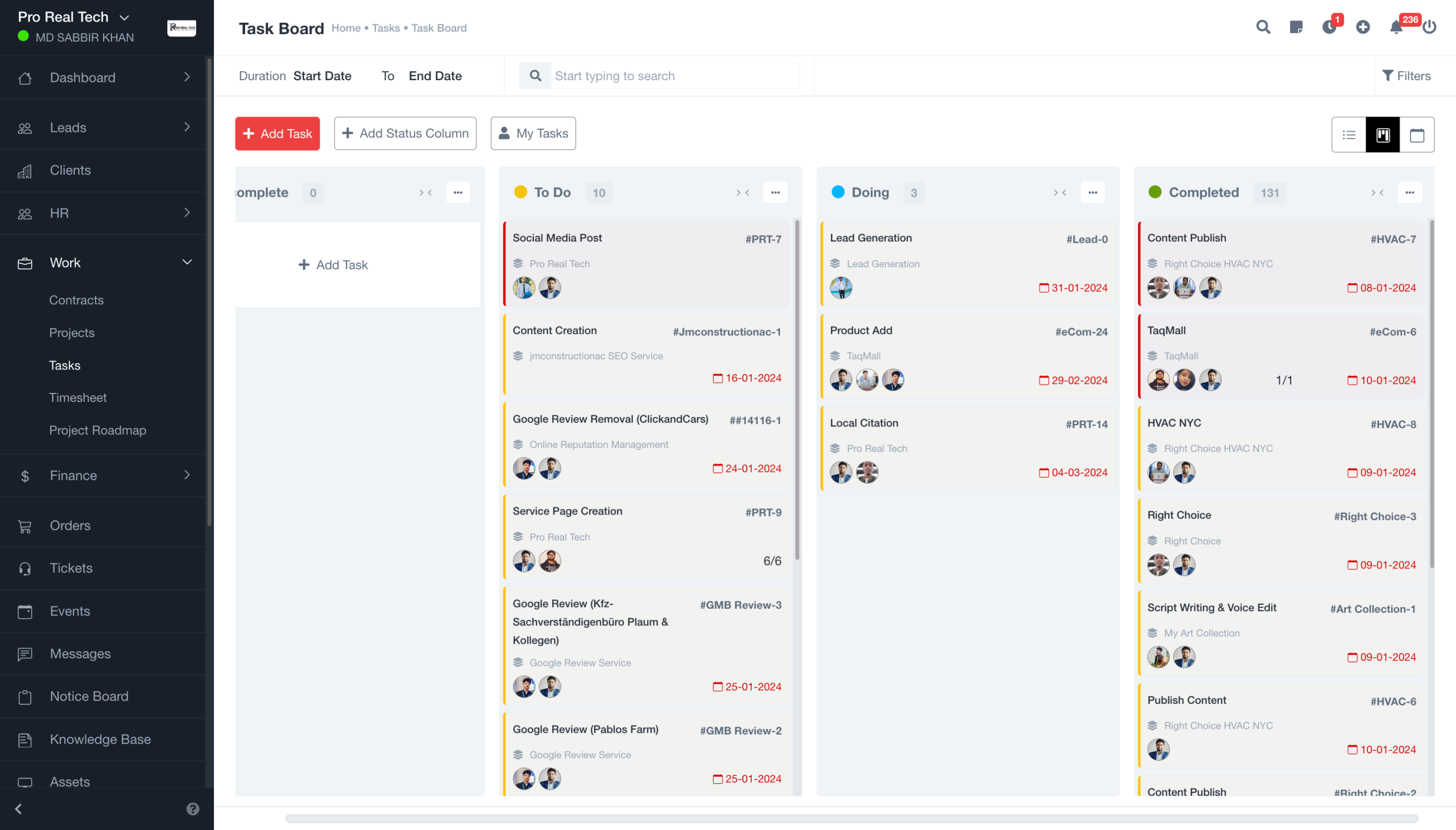
Google Tasks is an excellent tool for managing personal to-do lists, simple reminders, and daily work. It integrates seamlessly with Google Calendar, Gmail, and other Google Workspace apps, making it a great choice for individuals who want a lightweight productivity solution.
However, as your workload grows, so do your management needs.
If you’re coordinating multiple projects, collaborating with teammates, tracking billable hours, managing clients, or monitoring business operations, you’ll eventually encounter the limitations of a basic task manager.
That’s where a dedicated business management platform Corexta becomes a better fit.
Where Google Tasks Starts to Fall Short
Google Tasks was designed for individual task management—not end-to-end project execution.
For example, it doesn’t provide:
- Team task assignments
- Advanced project planning
- Kanban boards or Gantt charts
- Time tracking
- Project budgeting
- Workflow automation
- Client relationship management (CRM)
- HR or payroll management
- Cross-project reporting
- Team workload balancing
For freelancers with a handful of clients, these limitations may not be an issue. But for growing businesses and collaborative teams, switching between multiple apps often creates unnecessary complexity.
Corexta Brings Your Work Into One Platform
Instead of using separate tools for projects, clients, HR, payroll, finance, and task management, Corexta combines them into a single workspace.
Rather than treating tasks as isolated checklist items, every task becomes part of a larger project with timelines, priorities, team members, and business context.
This gives everyone—from employees to managers—a complete view of what needs to happen next.
Plan Projects, Not Just Individual Tasks
In Google Tasks, you can create a task with subtasks.
In Corexta, you can build complete projects containing:
- Multiple task lists
- Task dependencies
- Milestones
- Due dates
- Priorities
- Progress tracking
- Shared files
- Team discussions
- Calendar views
- Kanban boards
- Gantt charts
This makes it much easier to coordinate complex work involving multiple people and deadlines.
Assign Work Across Your Team
Google Tasks is primarily designed for personal productivity.
Corexta expands task management by allowing managers to:
- Assign tasks to team members
- Set priorities and deadlines
- Track task progress
- Monitor completion status
- View team workloads
- Receive task notifications
Instead of asking, “Who was supposed to do this?” everyone can clearly see task ownership and project status in one place.
Track Time and Measure Productivity
Many businesses need more than a checklist—they need visibility into how work is being completed.
Corexta includes built-in time tracking so teams can:
- Log hours against projects
- Measure productivity
- Compare estimated versus actual time
- Generate reports for managers
- Support client billing and profitability analysis
This is especially valuable for agencies, consultants, and service-based businesses where accurate time records directly affect revenue.
Connect Projects with Clients and Finance
One of Corexta’s biggest advantages is that projects don’t exist in isolation.
Tasks connect directly with other business functions, including:
- Client records
- Sales pipelines
- Proposals
- Invoices
- Expenses
- Payments
- Financial reporting
Instead of copying information between different tools, teams work from one centralized system where project and financial data stay connected.
Automate Repetitive Work
As organizations grow, repetitive administrative tasks consume valuable time.
Corexta helps reduce manual work through workflow automation, including:
- Project updates
- Approval workflows
- Task notifications
- Employee onboarding
- Leave approvals
- Payroll calculations
- Client onboarding
- Follow-up reminders
Automation allows teams to spend less time on administration and more time on meaningful work.
Manage More Than Projects
Unlike traditional task managers, Corexta is built as an all-in-one business management platform.
Depending on your needs, you can manage:
- Projects and tasks
- Client relationships (CRM)
- HR operations
- Employee attendance
- Payroll
- Recruitment
- Finance and expenses
- Asset management
- Business reporting
Having these modules connected in one platform eliminates the need to maintain several disconnected software subscriptions while providing a single source of truth for your business.
Who Should Continue Using Google Tasks?
Google Tasks remains a great choice if you:
- Manage personal to-do lists
- Work independently
- Need simple reminders
- Prefer Google’s built-in tools
- Want a lightweight task manager without extra complexity
Who Should Consider Corexta?
Corexta is better suited for:
- Growing businesses
- Agencies
- Marketing teams
- Software development teams
- Consulting firms
- Remote and hybrid teams
- Businesses managing multiple clients
- Organizations that want projects, HR, finance, CRM, and operations connected in one platform
If your work has outgrown simple checklists, moving to a unified business management solution can help you manage projects more efficiently, improve collaboration, and reduce the overhead of switching between multiple applications.
Frequently Asked Questions About Google Tasks and Google Calendar
Why aren’t my tasks showing up on my Google Calendar?
The most common reason is that the Tasks calendar layer is turned off. Open Google Calendar and make sure the Tasks calendar is enabled in the left sidebar (or in your calendar settings on mobile). Also verify that you’re signed in to the same Google account across Google Calendar and Google Tasks.
Another possibility is that your task has a due date but no scheduled date or time. Only scheduled tasks appear on your calendar timeline, while unscheduled tasks remain in the Google Tasks list.
Are Google Tasks and reminders the same thing now?
Not anymore.
Google has gradually consolidated reminder functionality into Google Tasks. Personal reminders created through Google services are now managed as tasks, giving users one centralized place to organize action items.
Unlike the older reminder system, Google Tasks supports features such as task lists, subtasks, recurring schedules, notes, and better integration with Google Calendar.
Where do my completed Google Tasks go?
Completed tasks aren’t immediately deleted.
Instead, they move to the Completed section within the corresponding task list.
You can expand this section to review finished work or permanently delete completed tasks if you no longer need the history.
Keeping completed tasks can be useful for tracking progress or confirming that recurring work has been finished.
How do I recover a Google Task I deleted?
Unfortunately, deleted Google Tasks can’t usually be restored.
Completed tasks can be marked as active again, but permanently deleted tasks don’t have a recycle bin or recovery feature.
If a task contains important information, consider marking it complete instead of deleting it. This preserves the record while keeping your active task list clean.
Can I move a recurring Google Task to a different list?
Yes.
You can move a recurring task to another task list using the Move to list option.
Keep in mind that changes generally apply to the recurring task itself, and future occurrences will continue to follow the recurrence schedule unless you edit or recreate it.
If you want an entirely different recurring workflow, creating a new recurring task in the target list is often the simplest approach.
Do Google Tasks work offline?
Yes—to a limited extent.
On supported mobile devices, you can usually view and edit previously synchronized tasks even without an internet connection.
Any changes you make while offline will sync automatically once your device reconnects to the internet.
However, creating or syncing new tasks across devices requires an active connection.
Can you share a Google Tasks list with other people?
No.
Google Tasks is designed for individual task management and doesn’t currently support shared task lists or collaborative editing.
If multiple people need to work from the same task list, you’ll need to use a collaborative project management platform or another shared workspace designed for team task management.
What’s the difference between Google Tasks and Google Keep?
Although both are Google productivity tools, they serve different purposes.
Google Tasks is designed for actionable work:
- Personal to-do lists
- Scheduled tasks
- Recurring tasks
- Subtasks
- Calendar integration
- Progress tracking
Google Keep is a note-taking application designed for capturing information, such as:
- Quick notes
- Checklists
- Images
- Voice memos
- Web links
- Ideas and brainstorming
A simple rule is:
- Use Google Tasks when something needs to be done.
- Use Google Keep when something needs to be remembered.
Many users combine both—capturing ideas in Google Keep and turning actionable items into Google Tasks when it’s time to schedule the work.