In today’s content-driven landscape, publishing consistently is no longer optional—it’s a competitive advantage. Whether you’re running a blog, managing SEO campaigns, or scaling content marketing for a brand, the real challenge isn’t generating ideas. It’s turning those ideas into published, high-quality content—reliably and repeatedly.
That’s where a structured content production workflow becomes essential.
A content production workflow gives your team a clear system for moving content from idea to publication. Instead of scattered documents, missed deadlines, and endless revision loops, you get a streamlined process where every task, file, and stakeholder is aligned. According to industry definitions, workflows help teams move from planning to publishing with better coordination, speed, and quality control.
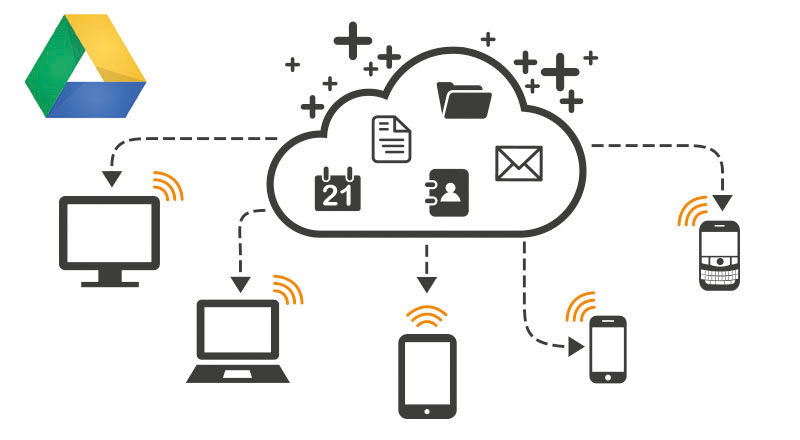
When paired with a tool like Google Drive, this workflow becomes even more powerful. Google Drive acts as a centralized workspace where teams can:
- Store content briefs, drafts, and assets
- Collaborate in real time using Docs, Sheets, and folders
- Maintain version control and feedback history
- Organize content stages in a structured, accessible way
Instead of juggling multiple disconnected tools, you can build a simple yet effective system inside Google Drive that supports your entire content lifecycle—from ideation to publishing.
Without a defined workflow, content production often becomes chaotic. Teams lose track of responsibilities, feedback gets buried in emails, and publishing timelines slip. But with a well-structured system, you create a repeatable engine that delivers consistent results, improves efficiency, and reduces bottlenecks.
What Is a Content Production Workflow?
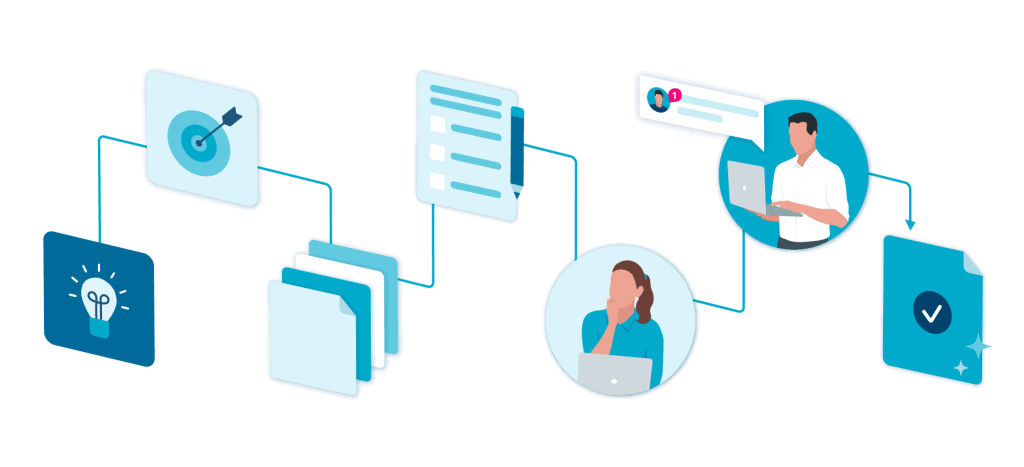
A content production workflow is a structured, repeatable process that defines how content is planned, created, reviewed, approved, and published.
Think of it as a roadmap that answers three critical questions:
- What needs to be done? (tasks and stages)
- Who is responsible? (roles and ownership)
- When does it happen? (timelines and deadlines)
At its core, a content workflow transforms content creation from a random activity into a systemized process. It ensures that every piece of content follows the same path—from initial idea to final publication—so nothing gets missed or delayed.
Key Stages of a Content Production Workflow
While workflows can vary depending on team size and content type, most follow a similar structure:
- Ideation & Planning
Generating content ideas based on audience needs, keyword research, and business goals. - Content Brief Creation
Defining objectives, target keywords, structure, and guidelines for the piece. - Drafting & Production
Writing the content or creating media assets like visuals or videos. - Review & Editing
Editing for clarity, accuracy, SEO optimization, and brand consistency. - Approval Process
Final sign-off from stakeholders or content leads. - Publishing & Distribution
Uploading content to the CMS and promoting it across channels. - Performance Tracking & Optimization
Measuring results and improving future content based on data.
This sequence ensures that content moves forward in a logical, trackable progression, reducing confusion and delays.
Why It Matters
Without a defined workflow, content production can quickly become disorganized—especially when multiple contributors are involved. A structured workflow helps by:
- Improving consistency across all content pieces
- Reducing bottlenecks in review and approval stages
- Increasing production speed without sacrificing quality
- Enhancing collaboration between writers, editors, and marketers
- Aligning content with business goals and SEO strategy
A content production workflow turns content creation into a scalable system—one that can grow with your team and output demands.
How Content Production Workflows Work in Google Drive
Google Drive enables teams to build a content production workflow using a combination of structured folders, shared documents, and real-time collaboration tools. While it’s not a dedicated workflow platform, it can effectively support content operations when organized correctly.
At its core, a Google Drive workflow works by mapping each stage of content production to a clear folder structure and document flow.
1. Centralized Content Hub
Google Drive acts as a single source of truth where all content-related assets live:
- Content briefs
- Drafts and revisions
- Images and media files
- SEO research documents
- Publishing checklists
Instead of scattered files across tools or devices, everything is stored in one place, making it easy for team members to access and collaborate without friction.
2. Folder-Based Workflow Structure
Teams typically create folders that reflect each stage of the content lifecycle. For example:
- Ideas / Backlog
- In Progress
- Under Review
- Approved
- Published
Each piece of content moves through these folders as it progresses. This simple structure provides a visual representation of content status, even without a dedicated dashboard.
3. Document-Driven Collaboration
Google Docs becomes the main workspace for content creation. Multiple contributors can:
- Write and edit simultaneously
- Leave comments and suggestions
- Tag team members for feedback
- Track version history
This eliminates long email threads and ensures feedback is centralized within the document itself.
4. Role-Based Access and Permissions
Google Drive allows you to assign different permission levels:
- Editors for writers and content creators
- Commenters for reviewers and stakeholders
- Viewers for final approvals or reference
This helps maintain control over content while still enabling collaboration across teams.
5. Status Tracking Through Naming Conventions
Since Google Drive doesn’t have built-in workflow tracking, teams often rely on file naming systems such as:
Draft - Blog TitleReview - Blog TitleFinal - Blog Title
This makes it easier to quickly identify the stage of each content piece without opening the file.
6. Integration with Other Google Tools
Google Drive workflows often extend into:
- Google Sheets for editorial calendars
- Google Docs for writing and editing
- Google Forms for content requests or briefs
Together, these tools create a lightweight but functional content system that supports planning, execution, and tracking.
How to Set Up a Content Production Workflow in Google Drive
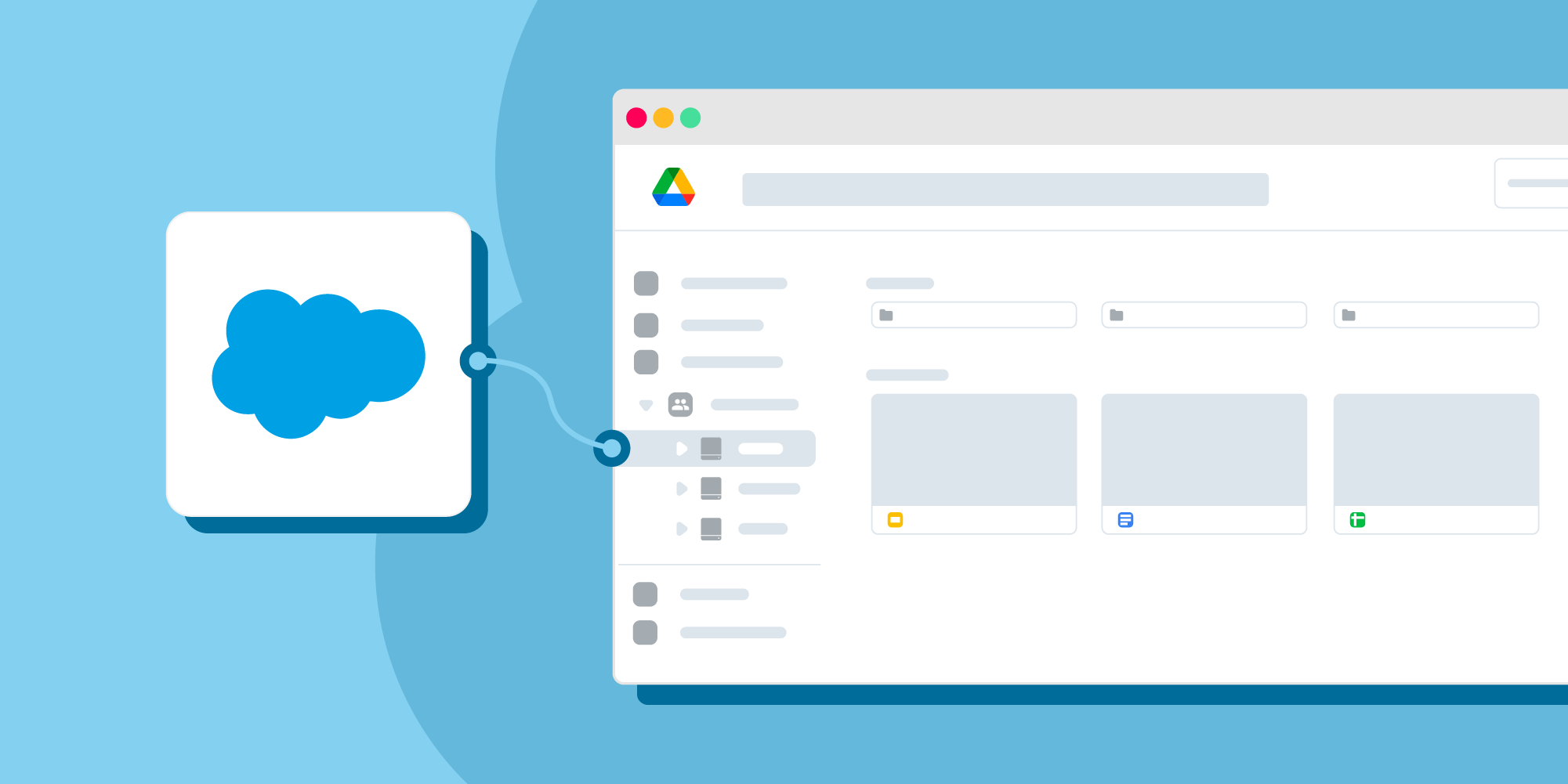
Setting up a content production workflow in Google Drive requires more than just creating folders. The goal is to build a repeatable, scalable system that your team can follow consistently.
Here’s a step-by-step approach to doing it effectively:
Step 1: Define Your Workflow Stages
Start by clearly outlining the stages your content will go through. A typical structure includes:
- Ideation
- Brief Creation
- Writing
- Editing
- Approval
- Publishing
Keep it simple—too many stages can slow down your process instead of improving it.
Step 2: Create a Structured Folder System
Inside Google Drive, create a main folder such as:
Content Production Workflow
Within it, add subfolders based on your workflow stages:
- 01_Ideas
- 02_Briefs
- 03_Drafts
- 04_Review
- 05_Approved
- 06_Published
Numbering folders ensures they stay in order and reflect the content flow clearly.
Step 3: Build Standardized Templates
Consistency is key to scaling content production. Create reusable templates for:
- Content briefs
- Blog outlines
- Draft documents
- Editing checklists
Templates save time and ensure every piece of content meets your quality and SEO standards.
Step 4: Set Up an Editorial Calendar
Use Google Sheets to manage your content pipeline. Your calendar should include:
- Content title
- Target keywords
- Assigned writer
- Deadline
- Current status
- Publishing date
This acts as your control center, giving visibility into what’s being worked on and what’s coming next.
Step 5: Assign Roles and Responsibilities
Define who is responsible for each stage:
- Content strategist → planning and briefs
- Writer → drafting content
- Editor → reviewing and optimizing
- Manager → final approval and publishing
Clear ownership prevents confusion and keeps content moving forward without delays.
Step 6: Establish a Clear File Naming System
Use consistent naming conventions to track progress. For example:
Blog - Topic - Draft v1Blog - Topic - EditedBlog - Topic - Final
You can also include dates or version numbers for better tracking.
Step 7: Use Comments and Suggestions for Feedback
Encourage your team to:
- Use suggestion mode for edits
- Leave comments for specific feedback
- Tag relevant team members for action
This keeps all communication inside the document, reducing the need for external tools.
Step 8: Move Files Through Workflow Stages
As content progresses, move files from one folder to the next:
- Draft → Review → Approved → Published
This simple action replaces the need for complex tracking systems and keeps everyone aligned on content status.
Step 9: Maintain Version Control and Documentation
Google Drive automatically tracks version history, but you should also:
- Keep final versions clearly labeled
- Archive older drafts if needed
- Store published links for reference
This helps maintain a clean and organized workflow over time.
Step 10: Continuously Optimize Your Workflow
No workflow is perfect from the start. Regularly review:
- Bottlenecks in the process
- Delays in approvals
- Repetitive tasks that can be simplified
Refining your system ensures it evolves with your team’s needs and content volume.
Tools to Automate Your Google Drive Content Workflow
While Google Drive provides the foundation for storing and organizing content, automation is what transforms it into a scalable and efficient workflow system. By integrating the right tools, you can eliminate repetitive tasks, reduce manual errors, and keep content moving without constant oversight.
Here are the most effective tools and how they enhance your Google Drive content workflow:
1. Zapier
Zapier is one of the most widely used no-code automation tools for connecting Google Drive with other apps.
How it works:
Zapier uses a simple logic:
- Trigger: Something happens (e.g., a new content brief is added)
- Action: It performs a task (e.g., creates a new Google Doc or moves a file)
You can automate workflows such as:
- Automatically creating folders for new content projects
- Moving files to “Review” when a draft is completed
- Sending Slack or email notifications when new files are added
- Saving attachments from emails directly into Drive
Zapier can also perform actions like uploading, moving, renaming, or sharing files automatically across apps.
👉 Example:
When a new row is added in your content calendar (Google Sheets), Zapier can instantly create a structured folder and document set in Google Drive.
2. Make
Make offers more advanced automation compared to Zapier, especially for complex workflows.
Best for:
- Multi-step content pipelines
- Conditional workflows (if/then logic)
- Handling large-scale content operations
You can build scenarios like:
- If a document is marked “Approved,” automatically move it and notify the publishing team
- Sync content updates across multiple tools
Unlike simpler automation tools, Make allows deeper customization and visual workflow building.
3. Google Apps Script
For teams that want full control, Google Apps Script enables custom automation inside Google Drive and other Google Workspace tools.
What you can automate:
- Auto-generating content templates
- Creating structured folders based on naming rules
- Sending approval emails when documents are updated
- Tracking workflow status inside Google Sheets
This is ideal for teams that need custom logic beyond standard integrations.
4. Google Forms
Google Forms can automate the content request and intake process.
How it fits into the workflow:
- Team members submit content requests via a form
- Responses automatically populate a Google Sheet
- Automation tools trigger folder creation and document setup
This creates a structured entry point for all content production.
Why Automation Matters
Without automation, Google Drive workflows rely heavily on manual actions—moving files, sending updates, and tracking progress. Automation helps by:
- Reducing repetitive tasks
- Improving workflow speed and consistency
- Ensuring no step is missed
- Keeping teams aligned in real time
However, it’s important to note that most automation tools act as connectors between apps, executing predefined actions rather than making complex decisions.
Limitations of Google Drive for Content Production Workflows
While Google Drive is flexible and accessible, it has several limitations when used as a full content production workflow system—especially for growing teams.
1. No Built-In Workflow Management
Google Drive does not include native features for:
- Task tracking
- Workflow automation
- Status dashboards
Teams must rely on:
- Folder structures
- File naming conventions
- External tools
This makes it harder to manage complex workflows compared to dedicated platforms.
2. Limited Visibility and Tracking
There’s no centralized dashboard to see:
- Content status (Draft, Review, Published)
- Task ownership
- Deadlines and progress
As a result, teams often depend on Google Sheets or manual tracking, which can become inefficient at scale.
3. Manual Process Dependencies
Many actions require manual input:
- Moving files between folders
- Updating document status
- Notifying team members
Even with automation tools, some steps remain semi-manual, increasing the risk of delays or errors.
4. Scalability Challenges for Large Teams
As content volume grows:
- Folder structures become cluttered
- Files are harder to locate
- Version control becomes more complex
Additionally, automation tools may face limitations—for example:
- File triggers may not work reliably in large folders
- Some workflows depend on file types or ownership permissions
5. Limited Approval Workflows
Google Drive supports comments and suggestions, but lacks:
- Structured approval pipelines
- Multi-stage approval tracking
- Clear sign-off systems
This can lead to confusion around whether content is truly “final.”
6. Integration Complexity
While integrations exist, they often require:
- Third-party tools like Zapier
- Technical setup or configuration
- Ongoing maintenance
There’s no native way to create fully automated, intelligent workflows inside Google Drive alone.
7. Lack of Advanced Automation Logic
Google Drive workflows are mostly linear and rule-based. They cannot:
- Make decisions based on context
- Handle exceptions automatically
- Adapt dynamically to workflow changes
This limits their effectiveness for more advanced content operations.
Google Drive is a powerful starting point for building a content production workflow—especially for small to mid-sized teams. It excels at collaboration, storage, and accessibility.
How Corexta Simplifies Content Production Workflows
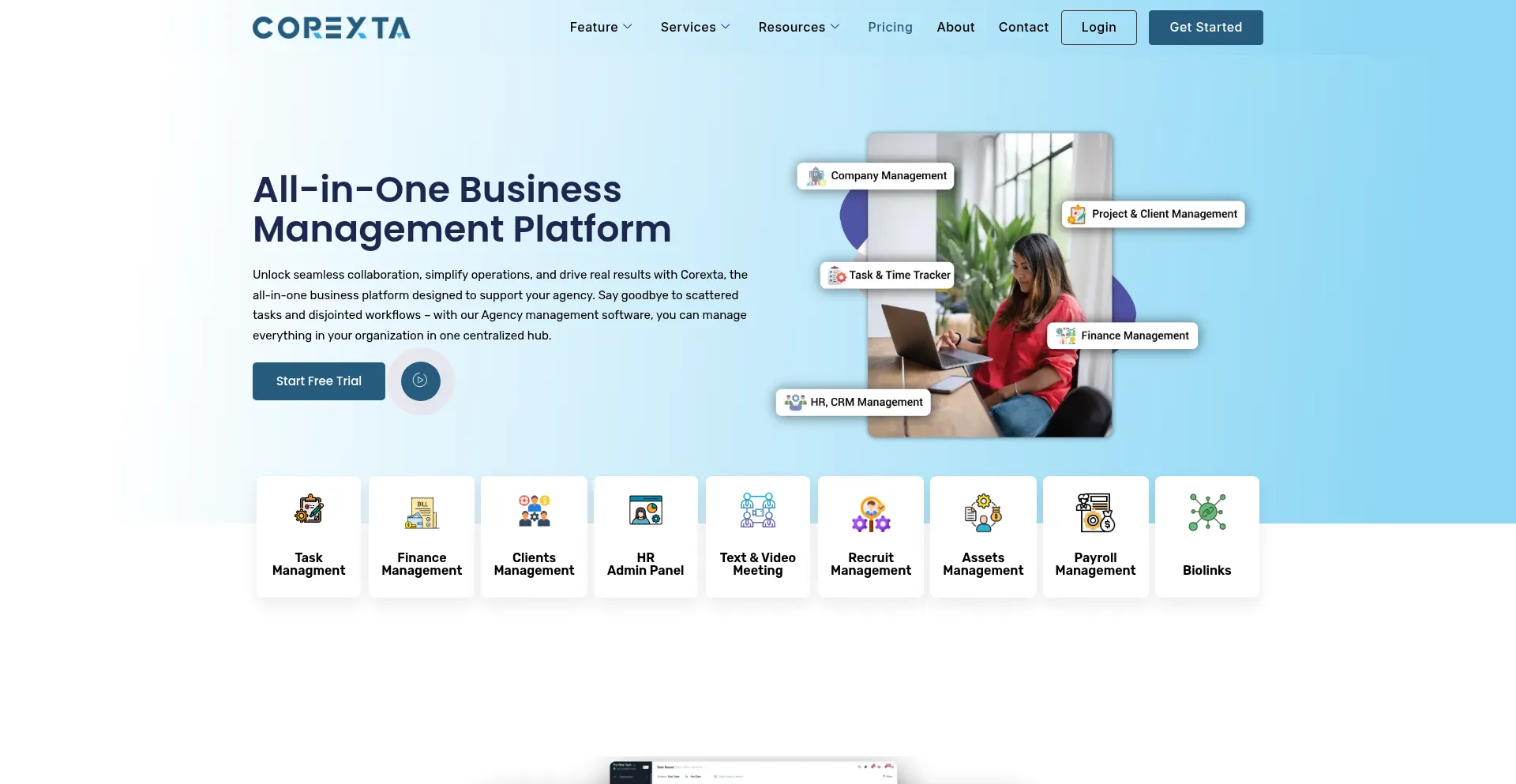
As content operations grow, managing everything inside Google Drive becomes increasingly complex. This is where a dedicated platform like Corexta transforms the entire workflow from manual coordination into a fully structured, automated system.
Corexta is designed as an all-in-one work management platform that centralizes projects, tasks, communication, and workflows into a single environment—eliminating the fragmentation that often exists in Google Drive-based setups.
Centralized Workflow Management
Unlike Google Drive, where files and workflows are loosely connected, Corexta provides a unified dashboard where everything is visible in one place:
- Content projects
- Tasks and deadlines
- Team assignments
- Files and discussions
This creates a true single source of truth, reducing time spent switching between tools and searching for information.
Structured Project and Task System
Corexta allows you to turn every piece of content into a structured project with tasks:
- Break content into stages (brief, draft, edit, publish)
- Assign each task to specific team members
- Set deadlines and priorities
- Attach files directly to tasks
With features like Kanban boards and task tracking, teams can visually move content through workflow stages—something Google Drive cannot do natively.
Built-In Workflow Automation
One of Corexta’s biggest advantages is automation.
Instead of manually:
- Moving files
- Notifying team members
- Tracking approvals
Corexta can:
- Automatically assign tasks
- Trigger status updates
- Send alerts and notifications
- Manage approval workflows
This reduces repetitive work and ensures that no step in the content process is missed.
Real-Time Collaboration and Communication
Corexta integrates collaboration directly into the workflow:
- Team messaging and comments داخل tasks
- File sharing within projects
- Tagging team members for updates
This eliminates scattered communication across email, chat apps, and documents—keeping all discussions tied to the actual content task.
Advanced Tracking and Visibility
With Google Drive, tracking content status requires manual updates. Corexta solves this with:
- Real-time dashboards
- Progress tracking
- Timeline and calendar views
- Performance reports
Managers can instantly see:
- What’s in progress
- What’s delayed
- Who is responsible
This level of visibility helps teams identify bottlenecks early and optimize workflows continuously.
Customizable and Scalable Workflows
Every content team operates differently. Corexta supports:
- Custom workflow stages
- Role-based permissions
- Flexible project templates
As your team grows, the platform scales with you—handling multiple projects, teams, and complex workflows without breaking structure.
AI and Productivity Enhancements
Corexta also incorporates AI-driven capabilities to:
- Suggest task priorities
- Identify potential delays
- Improve workflow efficiency
This moves content operations from reactive management to proactive optimization.
While Google Drive is a strong starting point, Corexta turns your content workflow into a fully managed system. It replaces manual coordination with:
- Automation
- Real-time visibility
- Structured task management
For teams aiming to scale content production efficiently, Corexta provides the infrastructure needed to move from basic organization to advanced workflow execution. Try Corexta free today!
Frequently Asked Questions (FAQs)
What’s the difference between a content workflow and a content calendar in Google Drive?
A content workflow defines the process content follows—from idea to publication. It includes stages like drafting, editing, approval, and publishing.
A content calendar, on the other hand, focuses on planning and scheduling. It shows:
- What content will be created
- When it will be published
- Who is responsible
In Google Drive:
- Workflows are managed through folders, documents, and processes
- Calendars are typically managed using Google Sheets
Both are essential, but they serve different purposes—workflow = execution, calendar = planning.
How does a Google Drive content workflow compare to using a dedicated project management tool?
A Google Drive workflow is:
- Flexible and easy to set up
- Cost-effective
- Great for small teams
However, a dedicated tool (like Corexta) offers:
- Built-in task management
- Automation and workflows
- Real-time tracking dashboards
- Structured collaboration
In short:
- Google Drive = manual, document-based workflow
- Project management tools = automated, system-driven workflow
How do you track content approvals and status updates in a Google Drive workflow?
Since Google Drive lacks built-in tracking, teams use workarounds such as:
- Folder stages (Draft → Review → Approved)
- File naming conventions (e.g., “Draft v1”, “Final”)
- Comments and suggestions in Google Docs
- Status tracking in Google Sheets
While effective for small teams, this approach requires manual updates and discipline to maintain accuracy.
Can Google Drive handle the full content production lifecycle for large teams?
Google Drive can support the full lifecycle—but with limitations.
For large teams, challenges include:
- Lack of workflow automation
- Limited visibility into progress
- Difficulty managing multiple contributors
- Increased risk of miscommunication
As content volume grows, teams often:
- Add automation tools
- Or transition to dedicated workflow platforms
For scaling operations, a structured system like Corexta becomes more effective, as it provides automation, tracking, and centralized control that Google Drive alone cannot offer.
Read More: Small Business Collaboration: Beyond Email & Slack