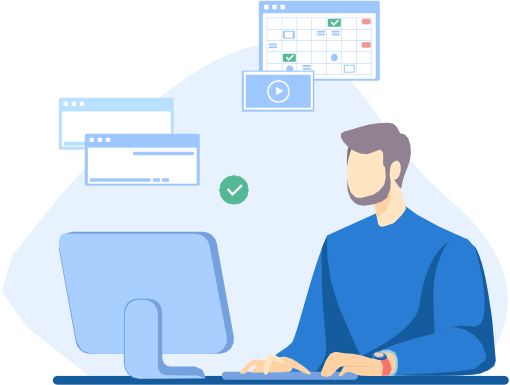
In an era where video content is increasingly central to communication, education, marketing, and remote collaboration, screencast software has become an essential tool for professionals and individuals alike. Screencasting enables you to capture what’s happening on your screen and turn it into a polished video—perfect for creating tutorials, product demos, training materials, walkthroughs, presentations, and much more. Whether you’re a teacher explaining complex concepts, a marketer showcasing software features, or a developer recording code tutorials, the right screencast software can elevate your content quality and make your message clearer and more engaging.
As we move into 2026, the landscape of screencasting tools continues to evolve. New innovations such as AI-assisted transcription, advanced editing capabilities, cloud collaboration features, and seamless sharing workflows are shaping how users create and consume video content. This guide will walk you through the fundamentals of screencast software, what to consider when choosing one, the key benefits, and a curated list of the 10 best screencast tools available today—spanning both free and paid options.
What is a Screencast Software?
A screencast software is an application designed to record the visual output of your computer screen, often alongside audio narration from your microphone and optionally webcam footage. Unlike a simple screenshot or static image capture, screencasting captures dynamic activity—mouse movements, application workflows, user interactions, and step-by-step processes—and packages them into a video file that can be shared, edited, or published.
Screencast software typically supports a range of recording options including:
-
Full-screen capture – Recording everything on your display.
-
Window or region selection – Recording only a specific app or area of the screen.
-
Webcam overlay – Displaying a small webcam feed on top of your screen recording.
-
Audio recording – Capturing narration or system audio while recording your screen.
-
Export and sharing tools – Saving recordings as MP4, GIF, or other formats for direct distribution.
Many modern screencast tools also include built-in editing features, cloud storage, and collaboration workflows so you can refine and share your videos quickly and professionally.
What Should You Look for in a Screencast Software?
Choosing the right screencast software depends on your goals, audience, and workflow—but there are several key qualities that distinguish excellent tools from mediocre ones. Here’s what to consider:
1. Recording Quality & Performance
High-resolution video capture (such as Full HD or 4K) and smooth frame rates (30fps or higher) are essential for professional-looking videos. Poor quality videos with lag or stuttering can frustrate viewers and reduce engagement. Look for tools that let you control resolution, frame rate, and quality settings.
2. Audio Features
Good screencasts are not just about visuals; clear narration makes them more impactful. Ensure the software can record microphone input and system audio, offers noise reduction or echo cancellation, and syncs audio with video without lag.
3. Editing Tools
Integrated video editing lets you trim clips, add annotations, insert transitions, and refine your content without needing a separate video editor. Some tools even offer AI-assisted enhancements, captions, and effects to speed up post-production.
4. Ease of Use
The best screencast tools strike a balance between powerful features and an intuitive interface. For beginners and casual users, drag-and-drop simplicity and guided workflows matter. For advanced users, customizable hotkeys, scene management, and workflow templates are big pluses.
5. Platform Compatibility
Ensure your tool works on your operating system—Windows, macOS, Linux, or web browsers. Cross-platform compatibility is especially important for teams and creators working across different devices.
6. Export & Sharing Options
Look for software that exports in multiple formats (e.g., MP4, GIF), integrates with cloud services or content platforms, and makes sharing via links, email, or social media easy.
7. Price & Value
Some screencast tools are free with basic capabilities, while others charge for premium editing features, AI enhancements, or collaboration workflows. Choose what fits your budget and offers the best return on investment.
Benefits of Using a Screencast Software
Screencast software delivers a wide range of benefits across different use cases—from business communication to education and content creation. Here are the primary advantages:
1. Enhances Learning and Training
Screencasts are ideal for step-by-step tutorials, software demos, and training videos. They help learners see exactly what’s happening on screen while hearing explanations, improving retention and clarity. Educators and corporate trainers use screencasts to flip classrooms, onboard employees, or document internal processes efficiently.
2. Improves Communication
In remote or asynchronous work environments, screencasts can replace long text emails or meetings. Teams can share quick walkthroughs, feedback videos, or product demos that are easier to understand than written instructions.
3. Boosts Engagement
Video content is more engaging than static text or screenshots. Whether you’re sharing a product demo with customers or posting tutorial content on social media or your website, screencasts can increase viewer engagement and interaction.
4. Saves Time and Reduces Repetition
Instead of answering the same questions repeatedly, you can record a screencast once and reuse it whenever needed. This is especially valuable in customer support and internal knowledge sharing.
5. Supports Marketing & Sales
Screencasts can be powerful tools in sales and marketing—helping showcase product features, onboarding customers, and creating personalized communications that resonate more than traditional messages.
6. Facilitates Better Feedback
Video recordings provide context that screenshots or written feedback often lack. Team members can visually highlight issues, explain design decisions, or give precise feedback, leading to more efficient reviews and faster iterations.
The 10 Best Screencast Software to Use
Below are detailed, in-depth descriptions of the first five top screencast tools in 2026—including what they are, key features, limitations, real pricing, and ratings & reviews. These are crafted to help your readers understand which software best fits their needs and why.
1. Corexta: Best for AI-transcribed Screencasts to Incorporate into Your Workflow
Corexta is an all-in-one business management and productivity platform designed to help teams streamline operations, centralize workflows, and communicate more effectively. Although it’s primarily known as a project and resource management tool, Corexta has expanded its capabilities to include AI-assisted screencasting and video recording features, making it possible to capture screen footage with automatic AI-generated transcripts that you can leverage across documentation, training, and internal workflows. Corexta integrates with tools like Zoom and messaging platforms to make sharing and collaboration seamless within teams.
This makes Corexta particularly valuable for businesses that want to embed recorded screencasts directly into task updates, customer support workflows, internal knowledge bases, and CRM activities without needing to juggle multiple apps.
Best Features
-
AI-Generated Transcription: Automatically transcribes video content, saving time on manual captioning.
-
Deep Workflow Integration: Seamlessly connects screencast recordings with other team workflows like CRM, task tracking, HR, and finance.
-
Centralized Workspace: Screencasts, project files, tasks, and communications housed in one platform.
-
Flexible Screen Recording: Capture screen activity with voice and embed directly into dashboards or client communications.
Limitations
-
Learning Curve: Users with limited technical experience may find the initial setup complex due to the platform’s breadth of tools.
-
Not Pure Screencast-Focused: Some users seeking a dedicated video editing suite may find Corexta’s editing features lighter than specialized screencast tools.
-
Third-Party Integrations: While improving, external integrations (outside Corexta’s ecosystem) may require additional setup or customization.
Pricing
Corexta offers multiple pricing tiers designed for businesses of different sizes:
-
Free Plan: 500 MB storage, up to 5 employees (basic features).
-
Small Business: $9.99 per user/month (2 GB storage, project & client management).
-
Medium Business: $19.99 per user/month (10 GB storage + payroll).
-
Enterprise: $29 per user/month (20 GB storage, unlimited users).
It also provides a free trial.
Ratings & Reviews
Corexta earns high marks for its value and integration-rich workspace:
-
Capterra: 5.0/5 stars, praised for ease of use, features, and value.
-
Users highlight Corexta’s ability to organize projects and operations in one place and reduce time spent switching apps.
-
Some users mention that improved setup guides would help new users onboard faster.
2. Loom: Best for Quick and Easy Videos

Loom is one of the most popular screen recording and video sharing tools designed for rapid communication, asynchronous work, and quick tutorial creation. It lets users capture their screen, camera, and microphone in a few clicks and instantly share the video via a link. Its easy-to-use interface works across desktop, mobile, and browser extensions, making it ideal for team collaboration, client walkthroughs, and quick explainer videos.
Best Features
-
Fast Recording Workflow: Start recording in seconds with minimal setup.
-
Multi-Platform: Available via desktop apps, browser extensions, and mobile apps.
-
In-App Editing: Basic trimming and editing tools help finalize videos quickly.
-
Collaboration Tools: Viewers can leave comments, reactions, and time-stamped feedback.
Limitations
-
Limited Advanced Editing: Loom’s editing features are basic compared to full video editors.
-
Free Tier Restrictions: Free users are limited to a certain number of videos and shorter recording lengths.
-
Occasional Performance Issues: Some users report occasional crashes or interface quirks with heavy usage.
Pricing
-
Starter: Free—Up to 25 videos, 5 min per video.
-
Business: ~$12.50 per user/month (billed annually).
-
Enterprise: Custom pricing for larger teams.
Paid plans unlock unlimited videos, longer recordings, transcript editing, and advanced privacy controls.
Ratings & Reviews
-
G2: 4.7/5 stars for ease of use and collaboration.
-
Users consistently praise Loom’s simplicity and how it reduces time spent on meetings & emails by delivering quick video messages.
-
Some reviewers note that the free plan’s limits can be restrictive for frequent creators.
3. ScreenPal (formerly Screencast-O-Matic): Best for Screen Recording and Video Editing

ScreenPal, previously known as Screencast-O-Matic, is a versatile screen recorder that combines screen capture with built-in video editing tools. It’s ideal for educators, small businesses, and anyone who needs easy recording plus basic editing features—such as trimming, captions, and overlays—to produce more polished videos.
Best Features
-
Flexible Recording Modes: Screen, webcam, or both.
-
Editing Tools: Trim, add text, music, storyboards, and annotations.
-
Direct Upload & Hosting: Options to upload recordings directly to hosting platforms.
-
Automated Captions: Enhance accessibility and clarity.
Limitations
-
Advanced Editing Lacks Depth: Not as powerful as dedicated editors like Adobe Premiere Pro.
-
Free Plan Limitations: Watermarks and recording length limits may frustrate heavy users.
-
Performance Variations: Browser-based editing can slow down with complex projects.
Pricing
ScreenPal offers a free plan, and paid plans typically start at around $3 per month for a single user with additional features unlocked.
Ratings & Reviews
-
User reviews highlight the ease of use and quick setup as major strengths.
-
Many users enjoy that affordable pricing still provides a robust suite for class projects and tutorials.
-
Some reviewers want more advanced features like green screen editing.
4. Camtasia: Best for Advanced Video Editing

Camtasia by TechSmith is a professional-grade screen recording and video editing tool tailored for users who need more than basic capture. It comes with a powerful editor, asset libraries, interactive elements, and advanced editing tools that let you build polished tutorial and presentation videos.
Best Features
-
Robust Editing Suite: Advanced timeline editing, transitions, effects, and audio enhancements.
-
Interactive Elements: Cursor effects, quizzes, and annotations improve engagement.
-
Multi-Platform Support: Works on both Windows and macOS.
-
Professional Output: Produces highly polished and responsive videos.
Limitations
-
Price Point: Higher cost than many beginner tools.
-
Steeper Learning Curve: Feature-rich interface may overwhelm beginners.
-
Resource Intensive: Requires a capable computer for smooth performance.
Pricing
Camtasia generally starts at around $179.88 per year for individual licenses, with higher tiers available.
Ratings & Reviews
-
G2: ~4.6/5 stars across many reviews.
-
Users frequently praise Camtasia’s editing flexibility and professional outcomes.
-
Some note that learning all features takes time, especially for new users.
5. Adobe Captivate: Best for Interactive Screen Recordings

Adobe Captivate is a powerful e-learning and content creation tool that supports screen recording as part of a broader suite for building interactive learning modules. It’s often used in educational and corporate training environments to create simulations, quizzes, branching scenarios, and responsive e-learning content.
Best Features
-
Interactive Content: Create simulations, quizzes, and branching scenarios.
-
AI & Media Integration: Generate captions, voiceovers, and insert rich media.
-
Responsive Design: Preview and publish courses across devices.
-
PowerPoint Import: Quickly convert Slide decks into interactive modules.
Limitations
-
Learning Curve: Powerful features take time to master.
-
Cost: Subscription pricing is higher than basic screencast tools.
-
Complex Interface: May feel overwhelming for simple screen captures.
Pricing
Adobe Captivate subscriptions typically start at around $33.99 per month, with free trials available.
Ratings & Reviews
-
Overall user ratings hover around 4.4/5 stars on independent review sites.
-
Many users appreciate Captivate’s Authoring power for course creation and simulations.
-
Some find navigation complex and the breadth of features daunting at first.
6. Vidyard: Best for Video Marketing

Vidyard is a video creation, hosting, and analytics platform designed specifically for video marketing, sales enablement, and customer communication. Unlike many basic screencast tools that focus solely on capturing video, Vidyard positions itself as a comprehensive business-oriented video platform that helps companies record, host, share, and track performance of videos across email campaigns, websites, CRM systems, and landing pages. Its analytics dashboard gives marketers deep insights into viewer engagement and content effectiveness—making it especially valuable for teams focused on measurable outcomes from video content.
Best Features
-
Unlimited Video Creation & Hosting: Create, upload, and store unlimited videos in a centralized library.
-
Advanced Analytics & Viewer Insights: Detailed viewer engagement metrics like watch time, drop-off rates, and heatmaps to optimize video performance.
-
Customizable Call-to-Actions (CTAs): Add interactive CTAs within videos to drive clicks, conversions, and leads.
-
Integration with CRM & Marketing Tools: Seamlessly connect Vidyard with Salesforce, HubSpot, and email marketing platforms for personalized video outreach.
-
Screen & Webcam Recording: Record both screen and webcam for explainer videos, demos, and personalized outreach content.
Limitations
-
Basic Editing Only: Vidyard’s built-in editing features are fairly limited compared to dedicated video editors; you may need third-party tools for complex edits.
-
Premium Features Behind Higher Tiers: Advanced analytics, branding customization, and CRM integration often require upgrade to more expensive plans.
-
Can Be Costly for Small Teams: Enterprise-grade capabilities might be more than what small businesses or individual creators need.
Pricing
Vidyard provides multiple pricing tiers to suit different user needs:
-
Free: $0 — Unlimited video creation and sharing with basic features.
-
Starter: $59 per user/month — Adds full analytics, branded sharing pages, CTAs, and password protection.
-
Teams: Custom pricing — Includes CRM/MAP integration, advanced analytics, team collaboration, and folder organization.
-
Enterprise: Custom pricing — Full suite with secure playback, SSO, and higher scalability.
Ratings & Reviews
Vidyard generally receives positive feedback for its video marketing utility and ease of use:
-
Users praise its intuitive interface, engagement analytics, and customizable video sharing.
-
Some reviewers note that recent reductions in free version functionality have been a drawback.
-
Value ratings vary, with strong scores for marketing impact but mixed feedback on customer support and pricing flexibility.
7. Riverside: Best for Podcasting, Video Recording, and Editing

Riverside (often referenced as Riverside.fm) is a browser-based platform tailored for remote podcast and video recording with studio-level quality. It captures separate audio and video tracks for each participant, enabling professional editing workflows even for distributed teams. Riverside also includes AI-assisted editing and clip creation tools, making it popular with podcasters, interviewers, and video content creators who need both high-quality recordings and collaboration features.
Best Features
-
Multi-Track Recording: Records each participant’s audio and video locally for higher quality and more precise editing. Studio-Quality Output: Up to 4K video and 48 kHz audio in higher plans.
-
Built-In Editor and AI Tools: Includes basic editing, transcription support, and tools to repurpose content like micro-clips.
-
Web-Based Convenience: No software installs needed; accessible from most modern browsers.
Limitations
-
Some Plans Limit Resolution: Free/basic plans may cap exports at 720p with watermarks.
-
Pricing Transparency: Higher-tier pricing (e.g., Business) is often custom or quote-based, which can make budgeting difficult.
-
Mixed Reliability Feedback: Some community users report occasional issues with performance and customer support.
Pricing
Riverside’s publicly listed pricing generally includes:
-
Free: $0/month — Basic recording with limited quality and features.
-
Pro: Around $24/month (billed annually) — Higher quality, more recording hours, and teleprompter features.
-
Live/Webinar Plans: $34–$79/month — Adds live streaming and webinar tools.
-
Business: Contact for pricing — Enterprise features and larger audience support.
Ratings & Reviews
-
Riverside is often praised for high-quality remote recording and flexibility.
-
Users appreciate studio-level audio/video capture and easy access.
-
On the downside, some creators find customer support and pricing communication could improve.
8. Screencastify: Best for Screen Recording and Video Editing

Screencastify is a browser-based screen recording tool that focuses on simplicity and accessibility, particularly for educators, students, and casual content creators. It integrates tightly with Google Chrome and Google Drive, making it easy to record screens, webcams, and audio, and then save or share recordings directly. Beginner-friendly design means you don’t need advanced video editing skills to get started.
Best Features
-
Easy Screen & Webcam Recording: Quick capture through browser without complex setup.
-
Google Drive Integration: Autosaves recordings and supports straightforward sharing.
-
Export Options: Export as MP4, GIF, or MP3 for versatile use.
-
Annotation Tools: Highlight key areas during recording to focus viewer attention.
Limitations
-
Free Version Caps Recordings: A five-minute limit on free recordings may frustrate power users.
-
Editing is Basic: More robust editing workflows require external tools.
-
Support & Dashboard Feedback Mixed: Some users report interface complexity or slow customer support.
Pricing
-
Free: $0 — Essential recording with five-minute limits per session.
-
Starter: ~$15 per user/month.
-
Pro: ~$20 per user/month — Longer recording limits and advanced export options.
Ratings & Reviews
-
Screencastify averages around 4.5/5 user rating, with many users praising its ease of use and Chrome integration.
-
Educators in particular value it for instructional video creation.
-
Some criticism revolves around the limits of the free plan and the value of paid tiers.
9. OBS Studio: Best for Video Recording and Live Streaming

OBS Studio (Open Broadcaster Software) is a free, open-source platform widely used for screen recording and live streaming. Unlike many screencast apps aimed at beginners, OBS offers deep customization, scene composition, and broadcasting capabilities. It’s powerful enough for content creators, gamers, educators, and professionals who want full control over their recording and streaming setup.
Best Features
-
Free & Open Source: No cost for full features; supported by a large community.
-
Live Streaming Support: Stream directly to YouTube, Twitch, Facebook, and more.
-
Custom Scenes & Sources: Combine multiple inputs like screen capture, webcam, images, and media sources.
-
Cross-Platform: Available on Windows, macOS, and Linux.
Limitations
-
Steep Learning Curve: Powerful features mean complexity for beginners.
-
No Built-In Advanced Editing: Post-recording edits require external tools.
-
Resource Intensive: High performance setups may be needed for complex scenes.
Pricing
-
Free: $0 — All features included without limits.
Ratings & Reviews
-
OBS Studio is widely rated around 4.6–4.7/5 for its feature set and power.
-
It’s especially popular with streamers and advanced creators due to its flexible scene and source management.
10. ScreenFlow: Best for Mac Users

ScreenFlow is a Mac-exclusive screen recording and video editing application known for balancing simplicity with powerful editing capabilities. It enables simultaneous screen, webcam, and audio capture with an intuitive timeline editor that’s ideal for educators, marketers, and content creators producing polished tutorials, demos, and presentations.
Best Features
-
Intuitive Recording & Editing: Record screen and webcam, then edit within an easy-to-navigate timeline.
-
Built-In Media Library: Access stock images, clips, and audio to enhance projects.
-
Advanced Export & Annotations: Add transitions, animations, and captions.
-
Mac-Optimized Performance: Designed specifically for macOS for smooth capture and editing.
Limitations
-
Mac-Only: Not available for Windows or Linux.
-
Paid-Only Product: No free version; requires purchase.
-
Learning Some Features: Intermediate features may take time to master.
Pricing
-
One-Time License: Around $169 for ScreenFlow, with optional stock media library add-ons.
Ratings & Reviews
-
Users rate ScreenFlow highly (around 4.6/5), praising professional edit tools and intuitive design.
-
It’s considered one of the most polished screencast tools for Mac users.
Power Your Screencasting Needs with Corexta
If you’re looking for more than just a basic screen recording tool in 2026, Corexta offers a powerful way to elevate how you create, manage, and share screencasts within your entire business workflow. While Corexta is best known as an all-in-one business management platform, it also supports visual communication and collaboration features that make screencasting a seamless part of your team’s productivity ecosystem. Rather than keeping video capture isolated from your other work, Corexta allows you to embed screencasts directly into project updates, client communication, and internal team workflows—making your recordings more actionable and integrated with daily operations.
At its core, Corexta brings together project management, client relationship management (CRM), finance tracking, HR administration, and collaboration tools into a centralized hub. This means you can record your screen to explain a project update, attach it to a task, share it in team discussions, and even link it with client deliverables—all without switching between different apps. Whether you’re running a tutorial for onboarding new employees, capturing a walkthrough of client software, or creating internal training videos, Corexta’s unified workspace ensures your visual content stays connected with the rest of your business data and work processes.
The platform’s focus on real-time collaboration and communication helps teams stay aligned. Because all your project details, file attachments, messages, and screencasts live in one place, your team spends less time searching through emails or chat threads and more time making progress. Corexta also offers integrations with tools like Slack and Zoom, which means you can bring your preferred conferencing and communication workflows together with your recordings.
What’s more, Corexta is built to scale with your business—from small teams on a free plan to larger enterprises needing more users and advanced customization. The platform includes features such as task tracking, client management, HR processes, financial reporting, and asset tracking, all in one place. Its versatile approach helps you turn simple screen recordings into valuable knowledge-sharing assets, embedded directly into your work management system.
Ready to transform your screencasting and team collaboration? Start a free trial with Corexta today and experience how one integrated tool can streamline your video creation, communication, and workflows from start to finish—no more juggling multiple apps or losing valuable context along the way! 🚀
Read More: Corexta vs. Anytype: Which Productivity Tool Suits You Best?